Your AI Tools Have Dotfiles Too. Here's How to Sync Them.
I’ve kept my dotfiles synced across machines for years. Shell configs, git aliases, editor settings; the usual. But when I looked at my setup recently, I realized I’d completely ignored the newest layer: all the AI CLI tools I now rely on daily.
GitHub Copilot CLI configs, Claude Code settings, custom instructions, memory files, tool preferences. None of that was being tracked. Every new machine meant rebuilding that context from scratch.
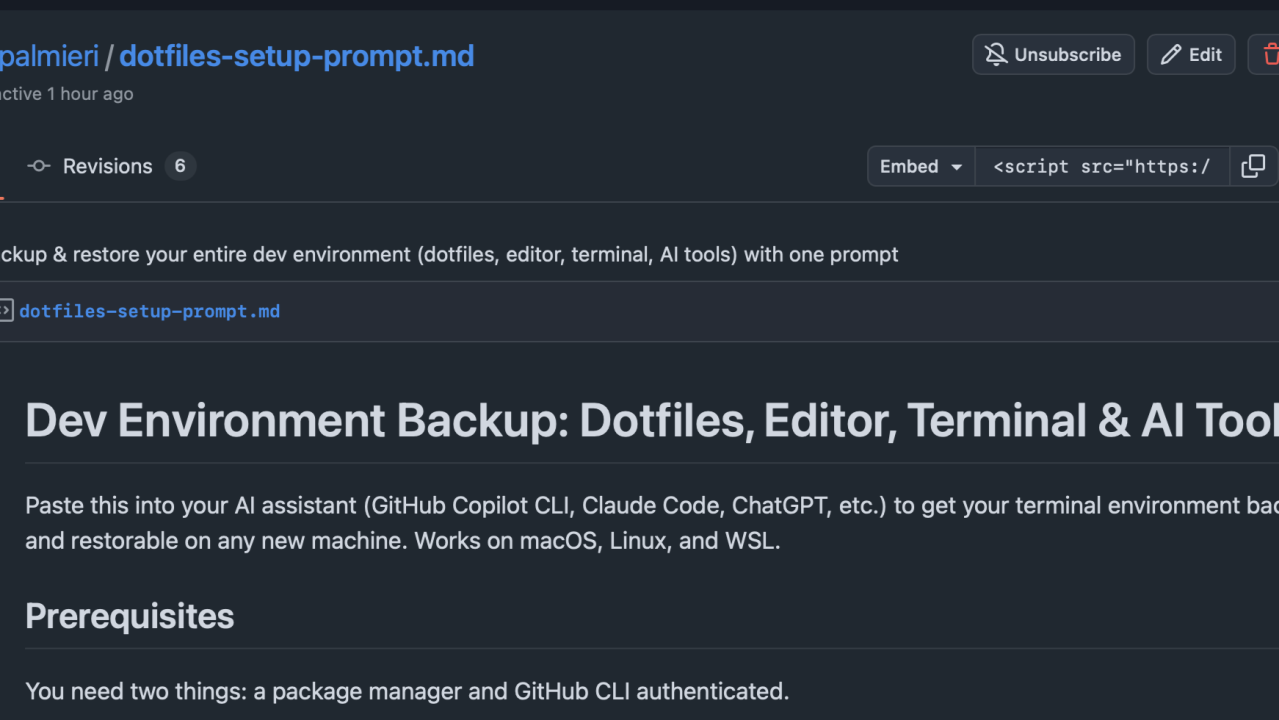
So I put together a single prompt you can paste into any AI assistant with terminal access (Copilot CLI, Claude Code, Cursor, whatever you use) and it will:
- Audit your entire dev environment (shell, editor, terminal, git, SSH, AI tools)
- Set up chezmoi to manage and sync everything to a private GitHub repo
- Template out personal info so secrets never hit the repo
- Create a bootstrap script that reinstalls your tools on any new machine
- Give you a one-liner to restore everything:
sh -c "$(curl -fsLS get.chezmoi.io)" -- init --apply YOUR_USERNAME - Set up a
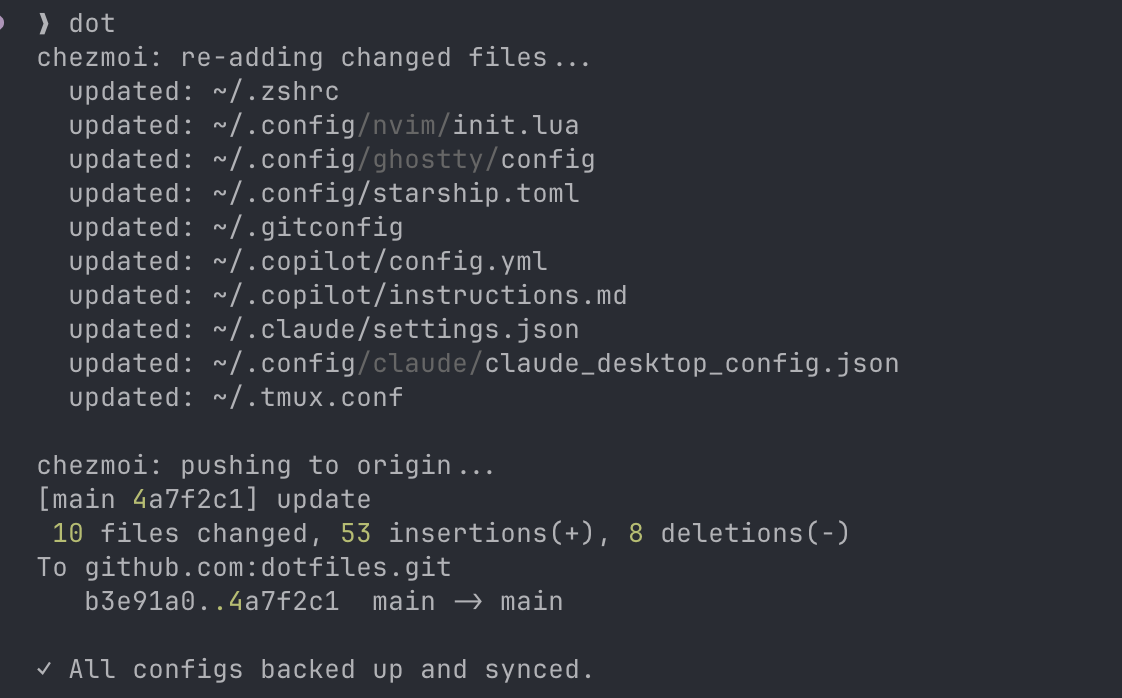
dotalias so anytime you tweak configs or add new tools, you just rundotand everything syncs back to your repo
Work vs. personal profiles
The part I’m most happy with: it supports work vs. personal machine profiles. One repo, one branch, but conditional configs mean your work laptop gets work tools and your personal machine stays clean. You choose at setup time. Everything stays isolated where it should be, but your full workflow syncs everywhere.
Why chezmoi
It uses chezmoi under the hood because it handles templates, conditional includes, and cross-platform installs without you needing to think about it. And because the setup is AI-driven, it adapts to whatever you actually have installed rather than following a rigid script.
Get it
If you’re someone who uses AI tools in the terminal and you’ve been putting off getting your configs portable, this should save you an afternoon.
Grab the prompt from the gist, drop it into your AI CLI tool, and let it do the work.